How to create, edit and delete roles
This article will cover how to
- Create a role
- Edit a role
- Delete a role
A role is a combination of permissions, that is allocated to a user. This helps a company restrict specific actions / access to an employee.
- Permission : Setting >> Role Permission : Yes
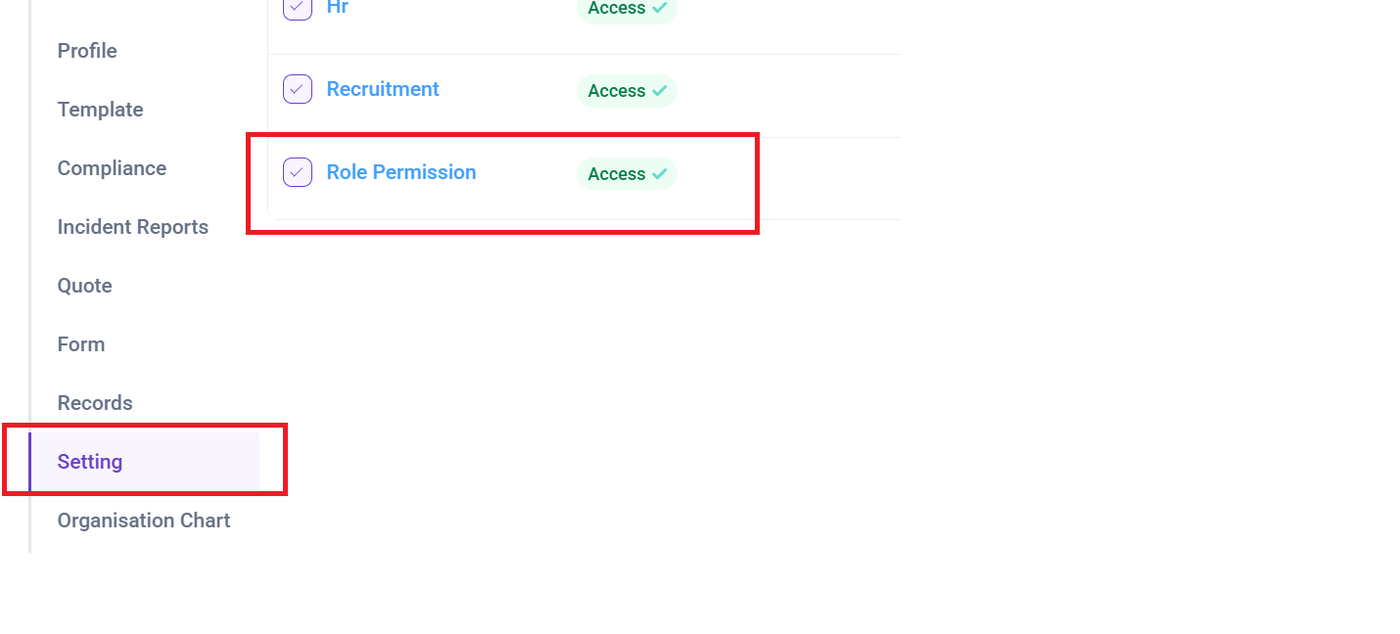
Open the sidebar menu, click on Settings, navigate to the Role / Permission Setting tab, and select Roles.

To Create a Role Click on the +Add Button at the right side.
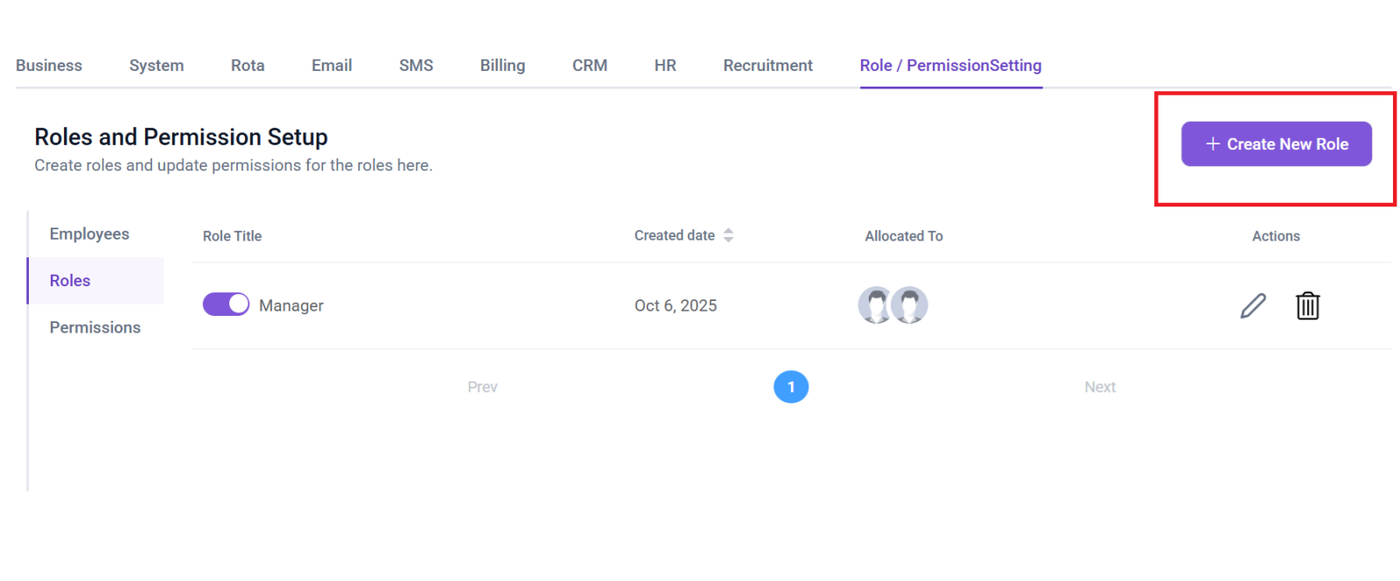
Clicking the Add button will open a pop-up form where you can create a role.
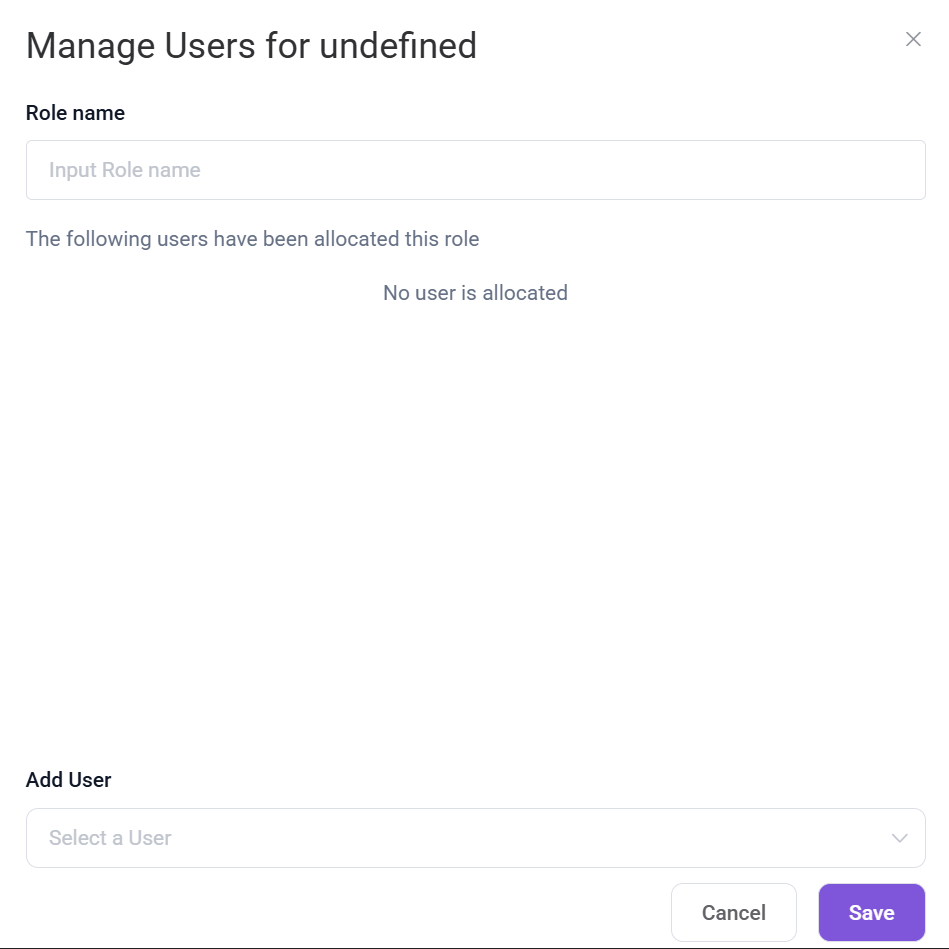
- Role name: Enter the name for the role
- Add user: Select user to whom you want to assign that role
Edit a Role
To edit or update the role click on the Pencil icon under the Action Column.
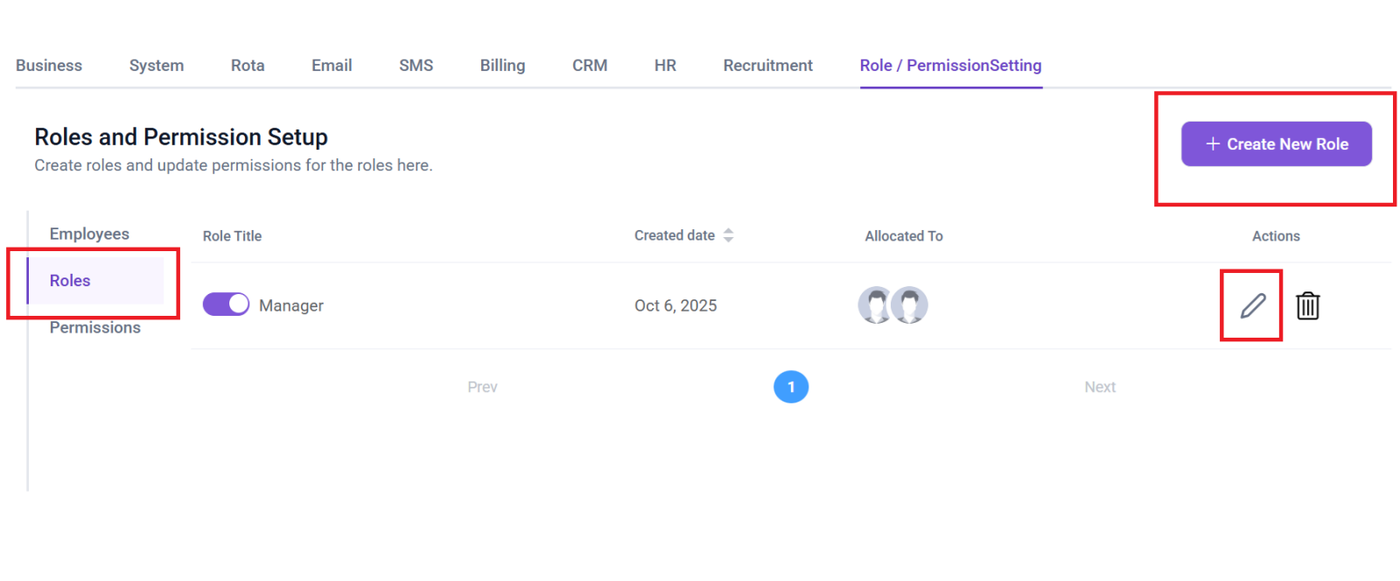
Clicking on the Pencil icon opens a popup form displaying the details of role.
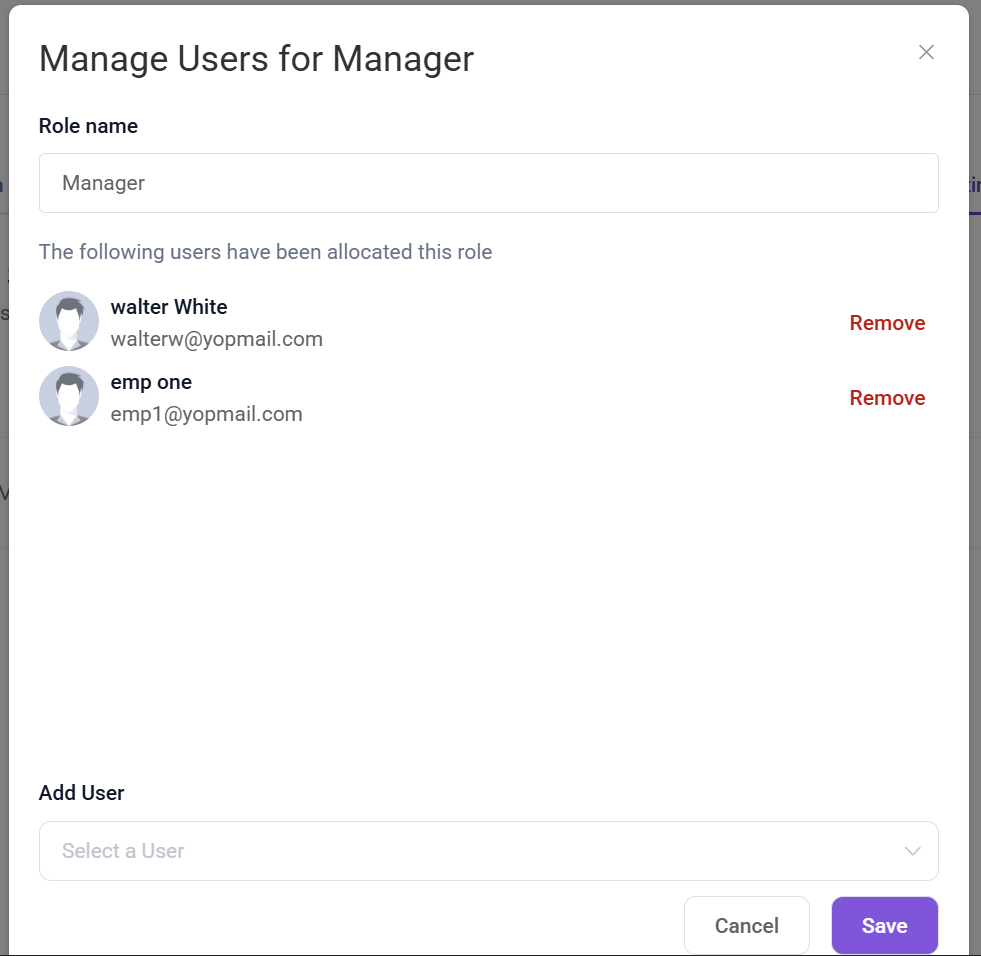
Update the Role name, Add / Remove user as needed.
Delete a Role
A Role might need to be deleted due to several reasons
To delete a Pre screening question Click on the Trash Bin Icon under the action column.
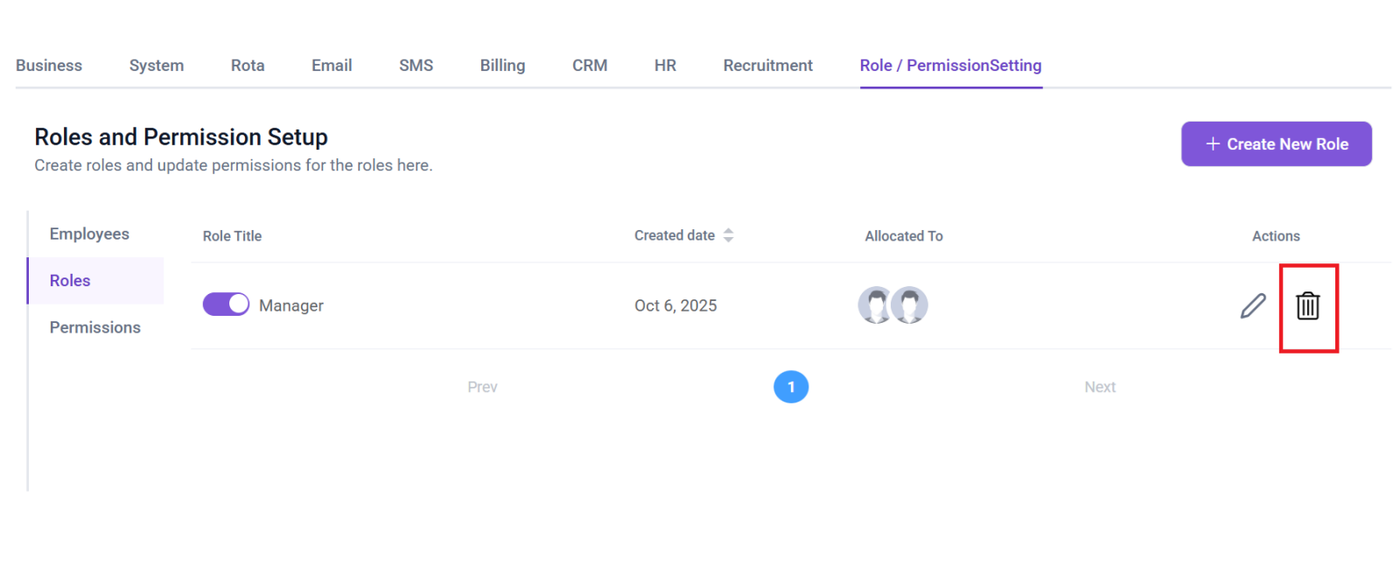
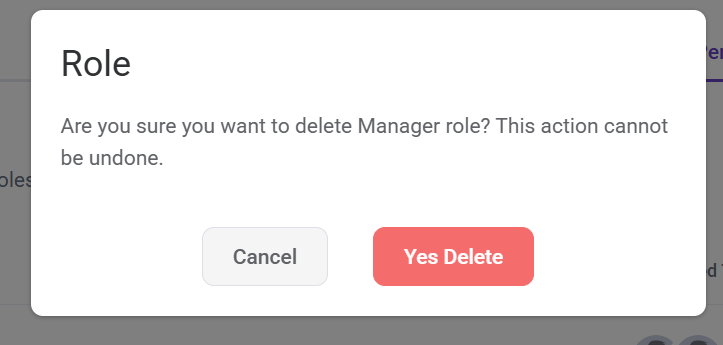
Clicking the Trash Bin icon triggers a confirmation pop-up with options to Cancel or Yes Delete the role. Selecting Yes Delete removes the role, while Cancel keeps it unchanged.