
How to delete an Employee
How to Delete an Employee
If you need to remove an employee from the system, follow the steps below. Depending on whether the employee has any active data (such as scheduled shifts), you’ll either be able to delete or archive their record.
📍 Step 1: Navigate to the Employees Page
-
Go to the Employees section in the app.
-
You can also access it directly by visiting:
app.provisoft.com.au/admin/employees
🗑 Step 2: Select the Employee to Delete
-
Find the employee you want to remove from the list.
-
Click the Delete icon (🗑) next to their name.
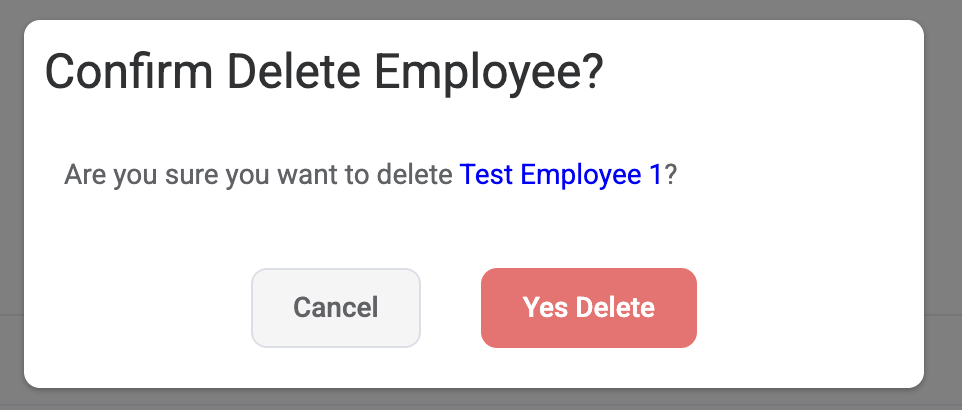
You will see a prompt like this :
⚠️ Step 3: Handle Active Shifts or Data
If the employee has any active data in the system (for example, upcoming or past shifts), you’ll see an error message like this:
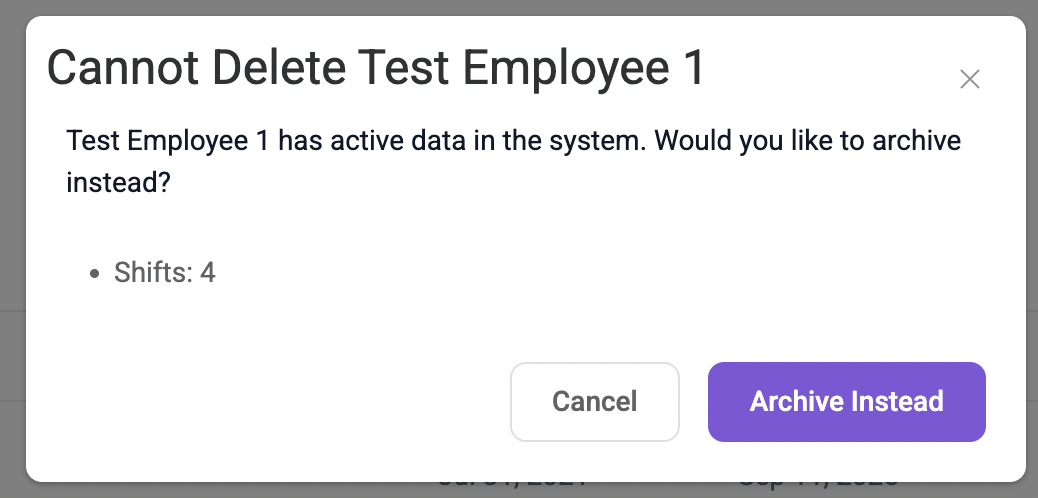
In this case, you have two options:
-
Cancel – If you don’t want to proceed.
-
Archive Instead – Choose this to archive the employee’s record rather than deleting it.
-
Archiving removes the employee from active use but keeps their data in the system for reporting and compliance purposes.
-
✅ Step 4: Delete if No Active Data
If the employee doesn’t have any shifts or other active records, the system will allow you to delete their profile completely. Once deleted, this action cannot be undone, so make sure you no longer need the employee’s data before confirming.
💡 Tip:
It’s generally recommended to archive employees who have historical data, rather than deleting them, to ensure reports and records remain accurate.