
How to create branch
In this article we learn about
- How to add branch
- How to edit branch
- How to delete branch
1.To create a new branch you need to have permission: HR > Branch >> view: yes & create: yes
2.To edit a branch you need to have permission: HR > Branch >> view: yes & edit: yes
3.To delete a branch you need to have permission: HR > Branch >> view: yes & delete: yes

How to add new branch
Using the side bar menu , navigate to settings
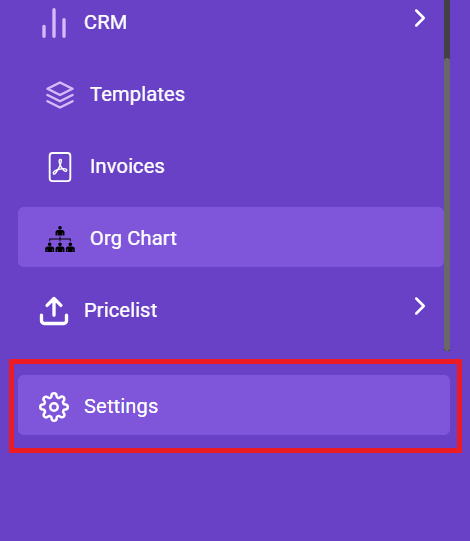
On clicking you will reach settings page, then click on HR tab and then click Branch 
Now click to Add button , then you will see a form
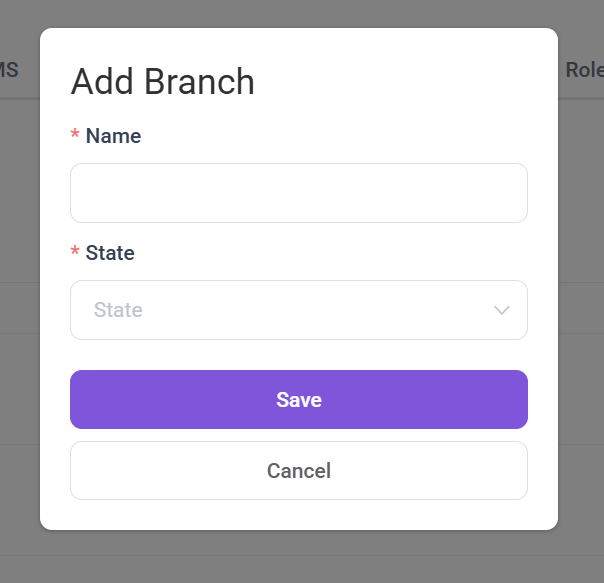
The form section includes:
1. Name: This is the mandatory field, enter the name of the branch
2. State: This is also mandatory field, choose the state from drop down
How to edit Existing branch
To edit the branch, click on the pencil (Edit) icon of the branch that you want to edit
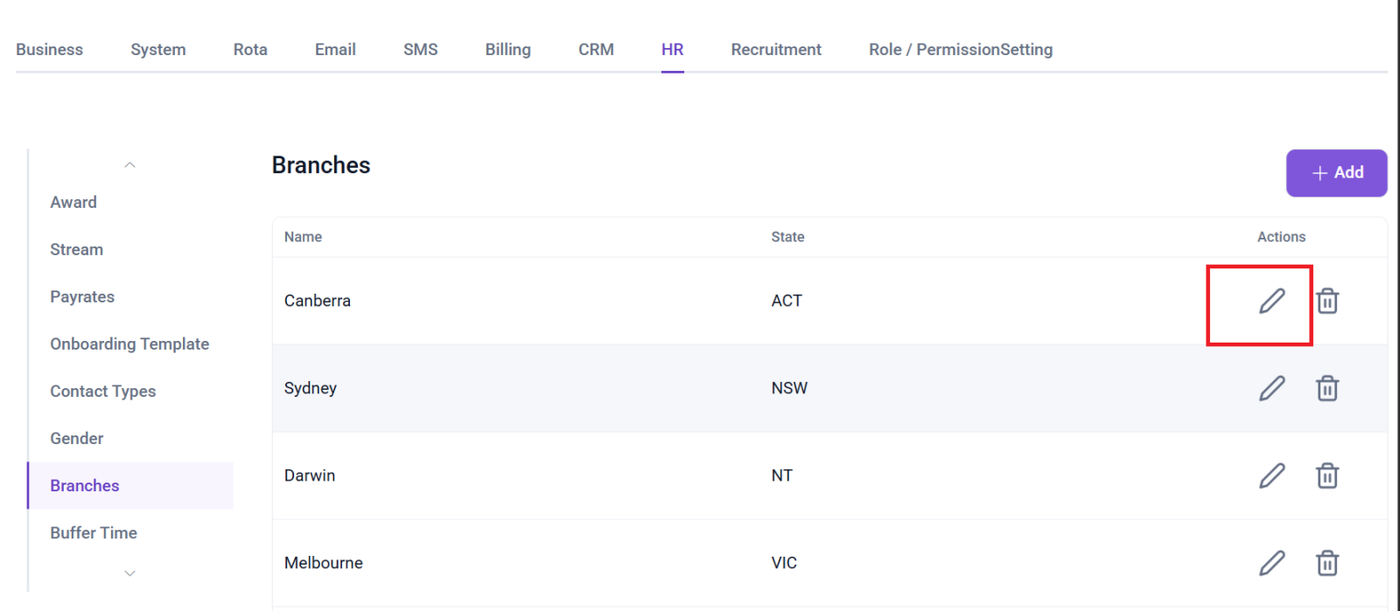
after clicking edit icon , a form will appear displaying current details
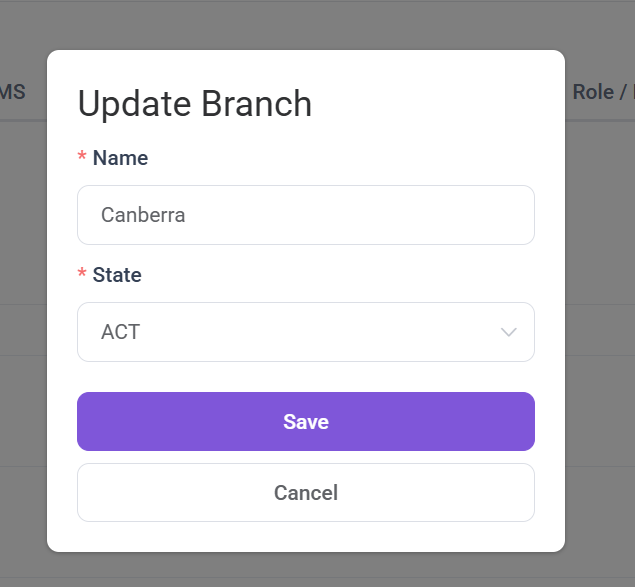
Now, you can make the necessary changes like branch name and state change.
Once you finish updating the required information click on Save Button to save any changes made to the branch .
How to delete existing branch
To delete a Branch simply click the delete(Trash bin) Icon next to the branch you want to delete.
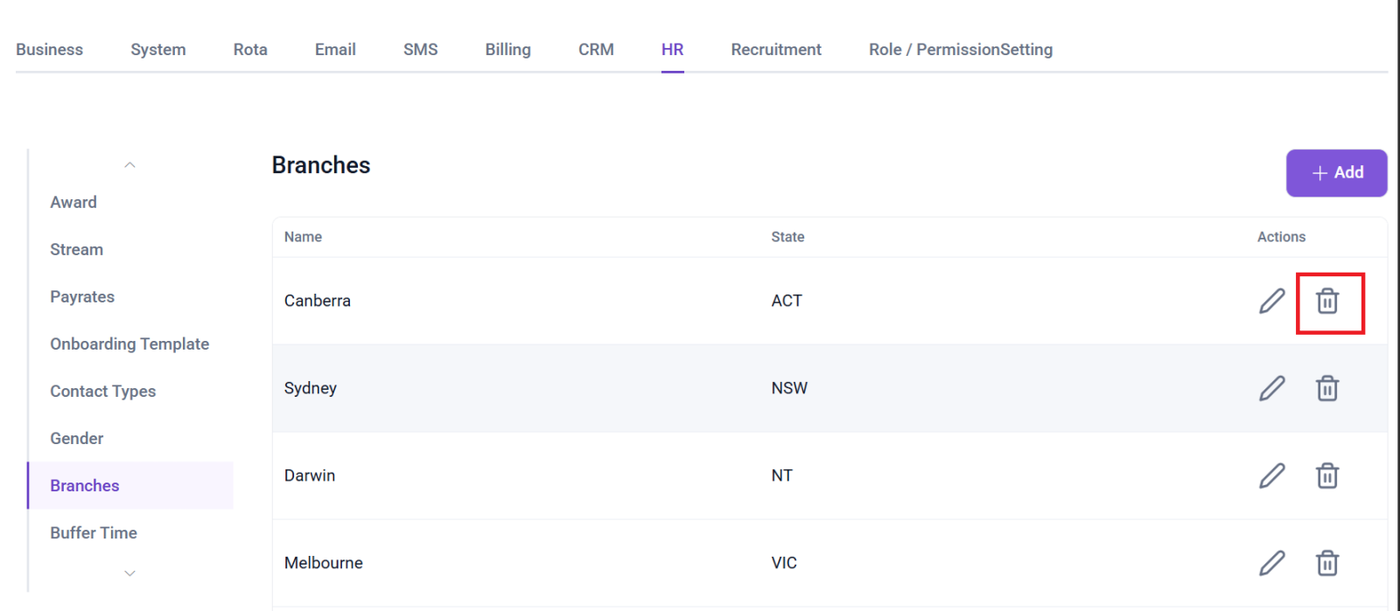
after clicking delete you will get confirmation pop-up will appear with the options to cancel and delete. If you still wish to delete the contact click yes delete, if not click cancel.
